Understand the Add Documents Dialog
The Add Documents dialog allows you to customize how documents are named when being added to a case. The Add Documents dialog appears when you attempt to add a document to your case.
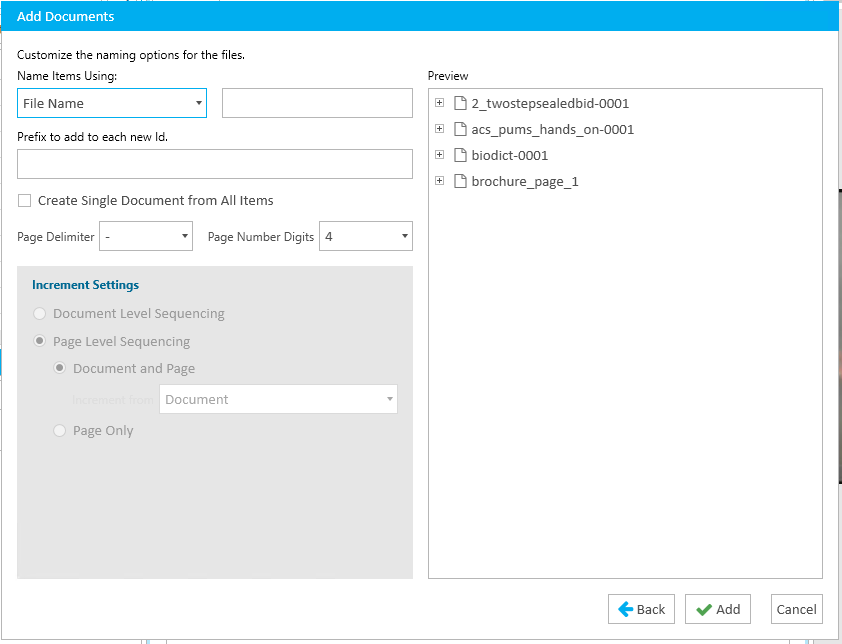
Naming options in the Add Documents dialog include the following:
|
Option |
Definition |
||
|
Name Items Using |
The selected option defines how the document is named. Options include:
|
||
|
Prefix to Add to Each New Id. |
Fill in this field to add a text prefix that will appear before the new number sequence. For example, you can use the initials of the party responsible for the documents, or use another type of naming convention (e.g. EX, SK, .etc) |
||
|
Create Single Document from All Items |
Check to combine all selected documents into a single document during the import process. |
||
|
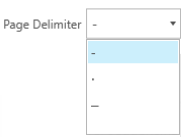
Page Delimiter |
This dropdown contains different options to separate the page numbers from the Document Id or Exhibit numbers. A page delimiter is not required.
|
||
|
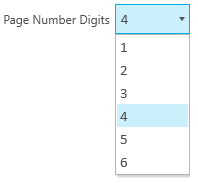
Page Number Digits |
This dropdown provides options for the number of digits for page numbering.
|
||
|
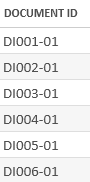
Starting Number |
The number you provide in this field is the starting number in the new sequence. This number will appear on the first document in the list in the Add Documents dialog. The subsequent documents will receive a number incremented by one from the previous number. In the image below, the starting number given in the dialog was "001":
|
||
|
Document Level Sequencing |
Check this box if you want to add numbering for each document. Pages of documents are not sequenced. |
||
|
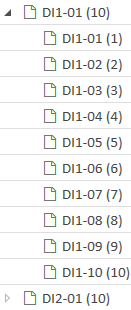
Page Level Sequencing - Document and Page |
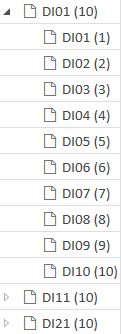
Check this box if you want to add numbering for each page in a document. Pages of documents are automatically detected during the Add Document process. Sequencing documents with the Page Level Sequencing option selected would end up looking something like this depending on the different Document or Page option:
|
||
|
Page Level Sequencing - Page Only |
Check this box if you want to add numbering for each page in a document. |