Filter Documents
You can filter the documents in your case using the Documents Explorer. You can filter the documents by type or by status.
To filter the documents in the case, open the Documents Explorer in the case and follow the steps below:
-
Click the Filter dropdown button.
-
Select a filter option.
By default, the Filter option is set to All Items.

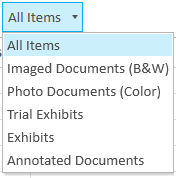
The list of filter options appear.
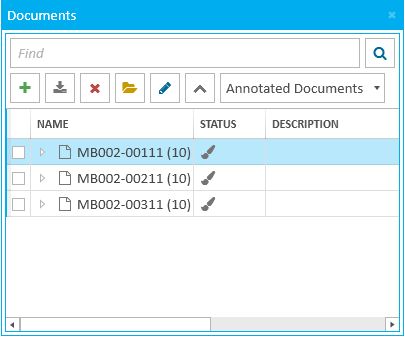
The Documents Explorer filters the multimedia types to only show documents that contain annotations.
Filter Options
|
Option |
Definition |
|
Imaged Documents (B&W) |
With this option selected, the Documents Explorer only shows black and white imaged documents. EVIDENCE can detect a property in an image to determine if it is black and white. |
|
Photo Documents (Color) |
With this option selected, the Documents Explorer only shows color photo documents. EVIDENCE can detect a property in a photo to determine if it is color. |
|
Trial Exhibits |
With this option selected, only documents in the Documents Explorer that have a Trial Exhibit Number in their properties are displayed. |
|
Exhibits |
With this option selected, only documents in the Documents Explorer that have an Exhibit Number in their properties are displayed. |
|
Annotated Documents |
With this option selected, only documents in the Documents Explorer that contain annotations are displayed. |