Use Presentation Preview
When using two monitors, after opening a case from the PRESENT Start Page, the Preview window will appear as well as the main Presentation window.
Preview
Presentation (Empty)
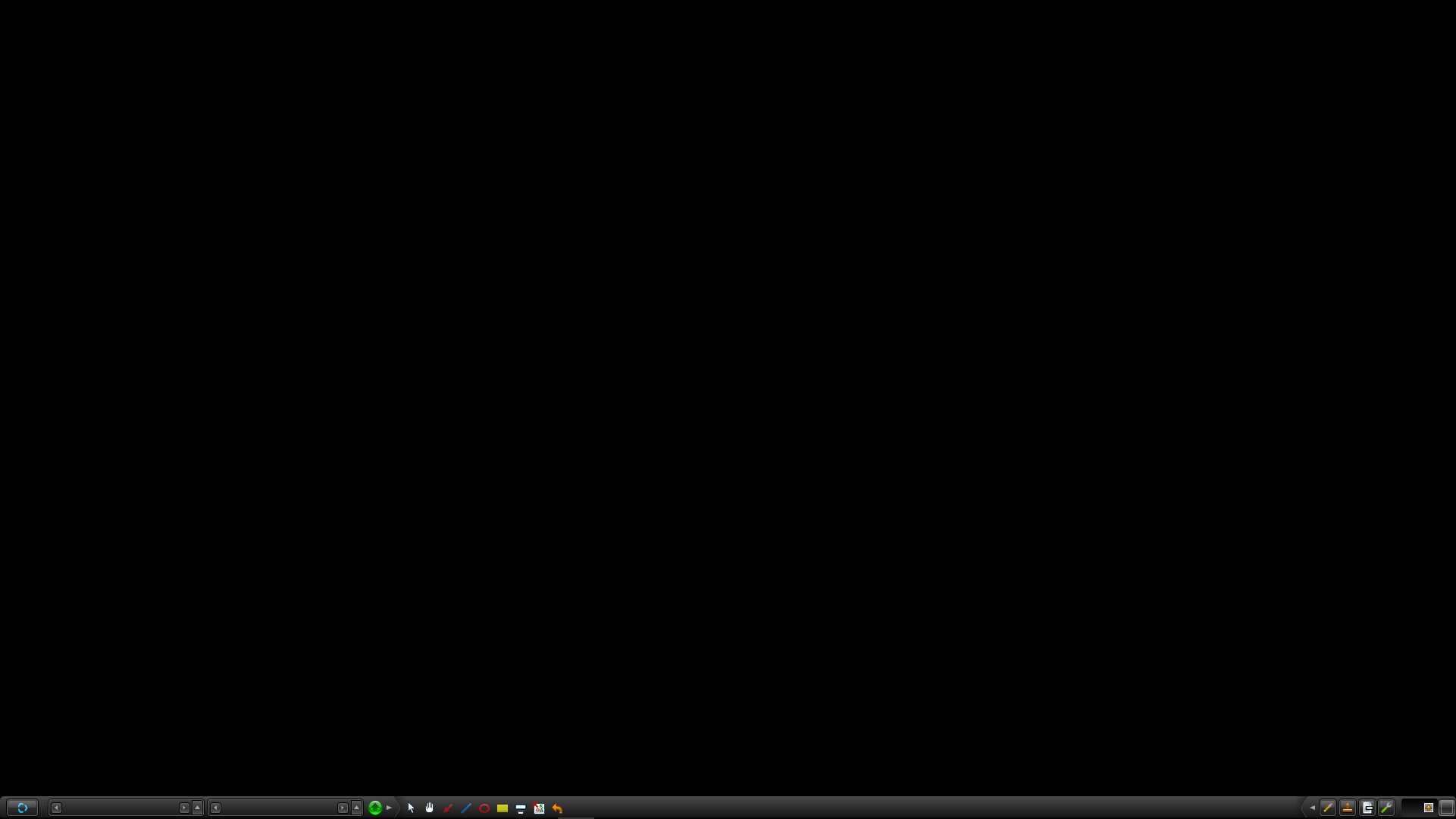
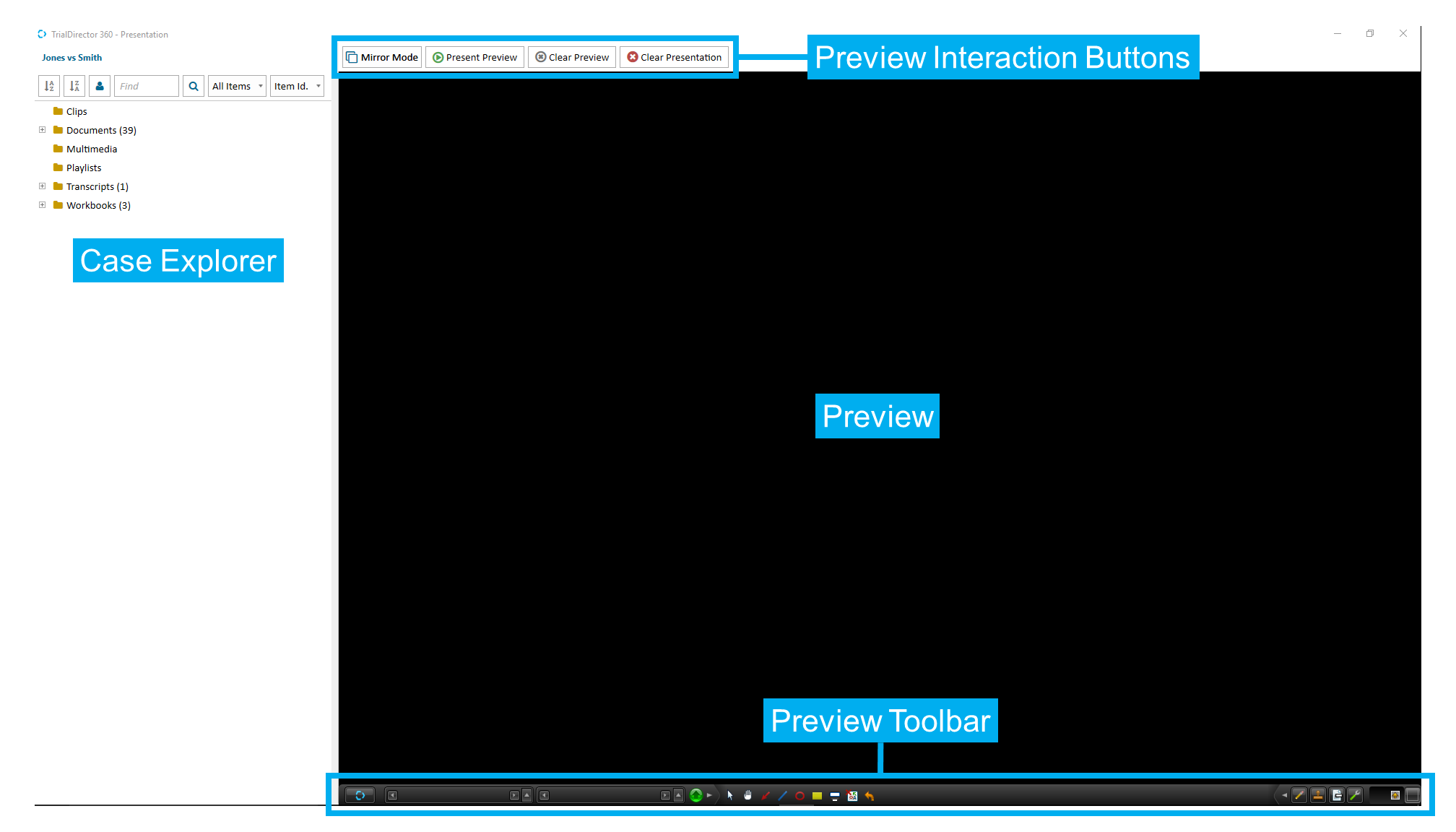
While it is possible to navigate a case and call up items solely from the main Presentation window via the toolbar, Preview makes navigating a case and setting up case items much easier. Whether preparing for or participating in trial, you can use the Presentation Preview window to see what any item in your case will look like when it is presented without having to stop and launch Presentation mode.
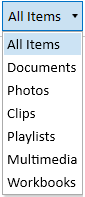
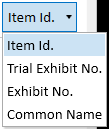
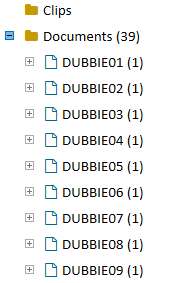
Simply drag any item from the Case Explorer to the Preview area. Click on the diagram and view the information below to learn more:

|
Note: When using Presentation Preview, the Preview screen uses the aspect ratio of the Presentation screen. If the Presentation screen is displayed on a 4:3 aspect ratio display - the Preview screen shows the Presentation stage at the same 4:3 aspect ratio. If you have a 16:9 aspect ratio laptop display that is connected to a 4:3 aspect projector, the Presentation Preview window on the 16:9 screen will be fixed to a 4:3 aspect ratio in order to adhere to the projector display settings. |
As seen above, Presentation Preview can divided into two sections: the Case Explorer, and the Preview area.
 Case Explorer