Print a Document
You can print documents from the Documents Explorer, Document Work Area, and Workbook Explorer.
Documents Explorer
To print a document from the Documents Explorer, open a case and follow the steps below:
-
Select a document in the Documents Explorer.
-
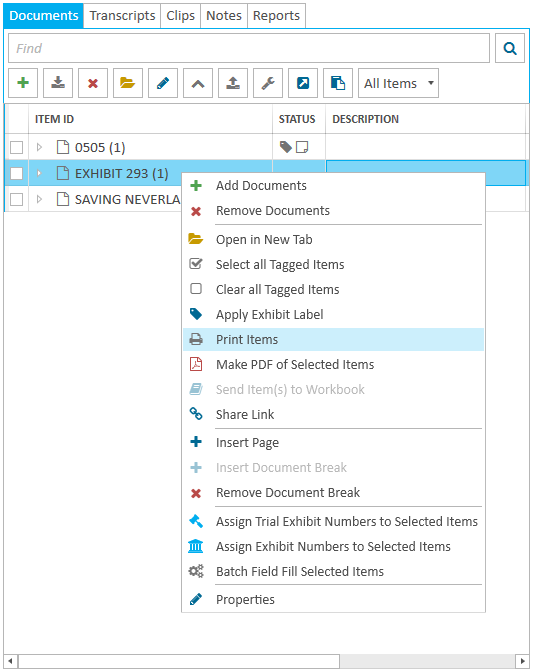
Right click on the selected document.
-
Click the Print Selected Items button.
-
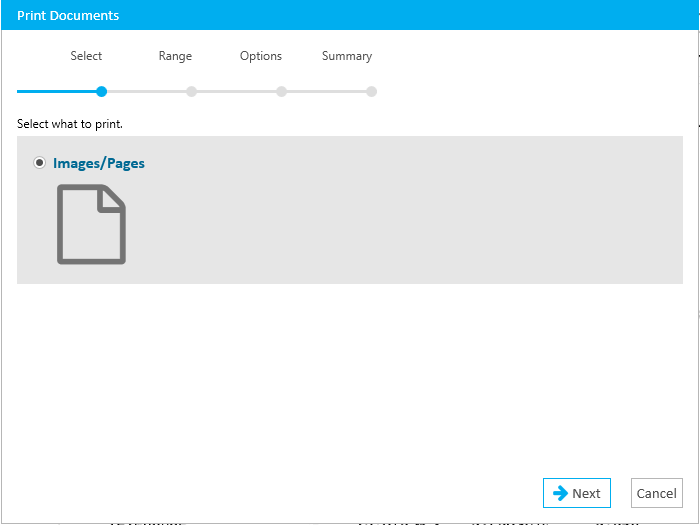
Click Next.
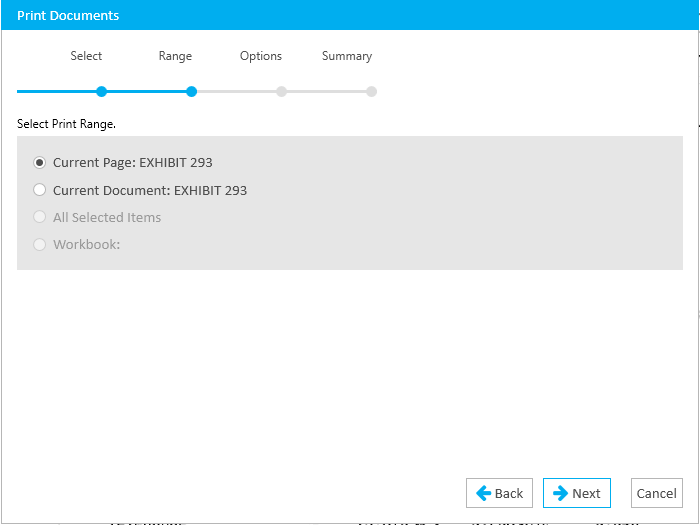
- Select the Print Range.
-
Click Next.
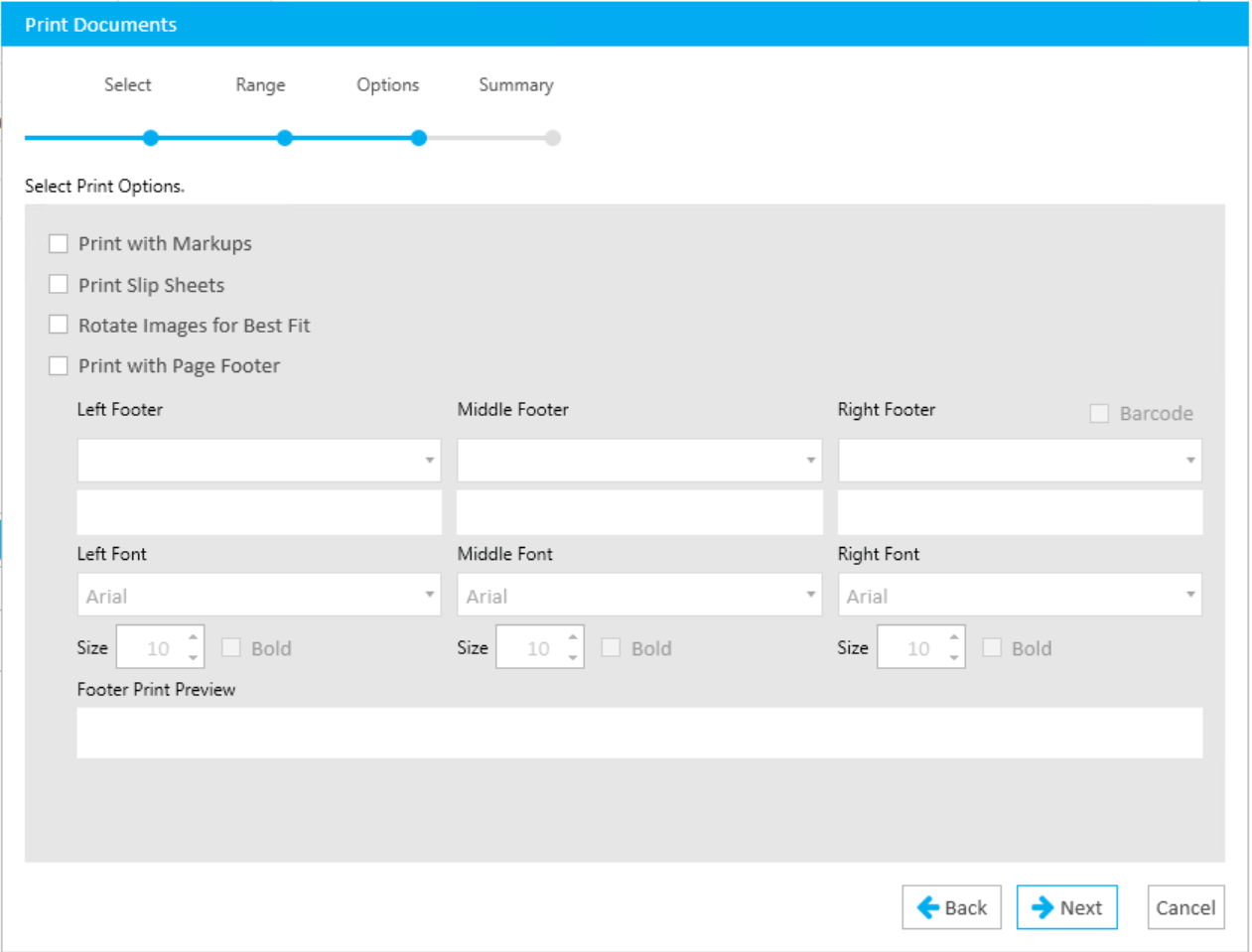
- Select the Print Options.
-
Click Next.
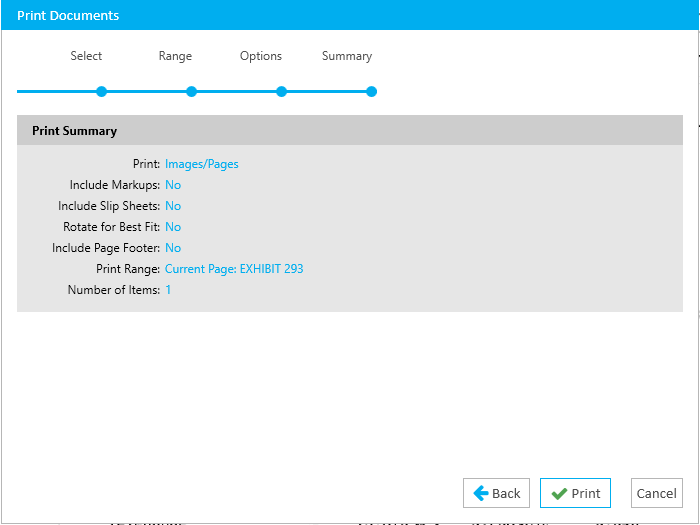
- Review the Print Summary.
-
Click Print.
- Select system options and click Print icon button.
The context menu appears.

|
Press CTRL+P to launch the Print Documents wizard. |
The Print Documents wizard appears.
|
|
Note: When the Print with Page Footer option is checked, any barcodes that are included in the footer will be subject to barcode technology standards. It is recommended for a barcode to be read reliably that the Page Id is between 6 and 12 characters in length and does not contain extended characters. |
The System Print dialog appears.
Documents Work Area
To print a document from the Document Work Area, follow the steps below:
- Open a document in the Document Work Area.
- Click Print Page.

The Print Document Wizard appears. Follow the steps outlined above.
|
|
Note: Press CTRL+P to launch the Print Documents wizard. |
Workbook Explorer
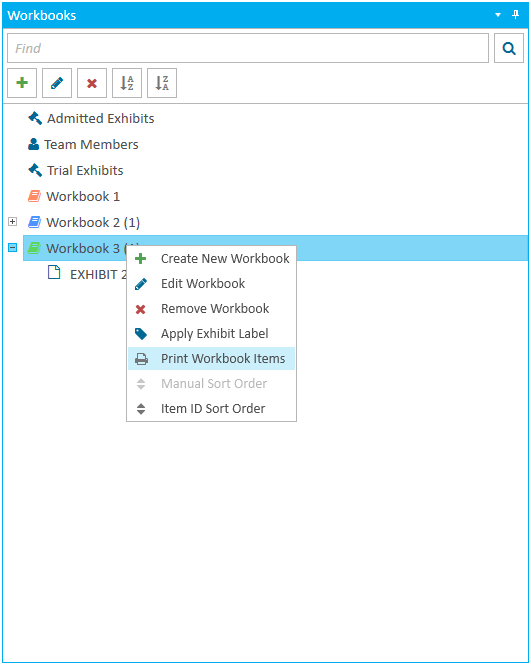
- Right click on the selected workbook.
- Select Print Workbook Items.
The context menu appears.
|
|
Press CTRL+P to launch the Print Documents wizard. |
The Print Document Wizard appears. Follow the steps outlined above.