Import Clips
You can import Page:Line references to create clips in the Clips Explorer.
General Import
To create clips by importing Page:Line references, open a case and follow the steps below:
-
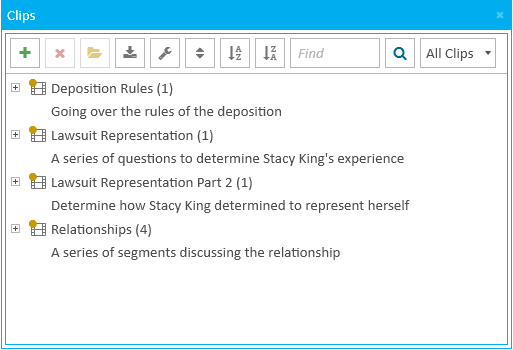
Open the Clips Explorer.
-
Click the Import button in the explorer.
-
Fill in the information for the clip.
-
Clip Name - The name to identify the clip.
-
Transcript - The transcript the clip is created from.
-
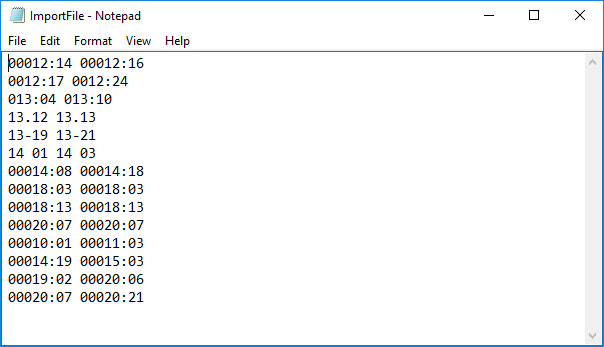
Import File - The file containing the list of Page:Line references. To add a file, click the Browse button. The local file explorer appears. You can then navigate to the file, select it, and open it. A clips import file can look like this:

-
Description - A short phrase to help describe the clip or its purpose.
-
Page:Line References - The Page:Line references to create the clip. You can copy and paste the references right into this field or enter them manually.
-
Multi-Segment Mode - With this option selected, the references imported are added into one clip. If not selected, a new clip is created with each reference range.
-
Click the Save button.
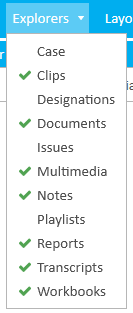
If the explorer is hidden, you can use the Explorer dropdown in the Main Menu to select and view it.

The Import Clips dialog appears.
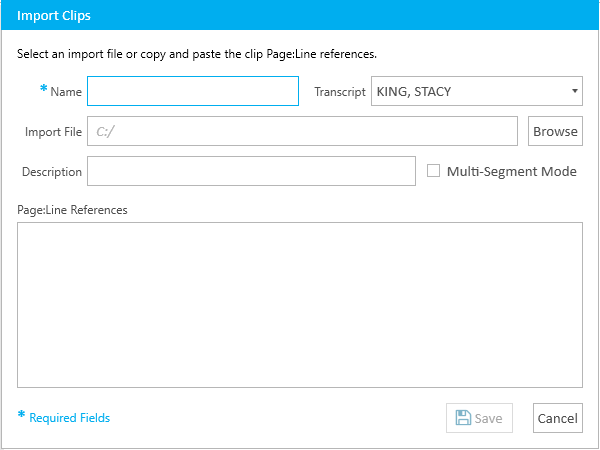
Enter the following information in the Import Clips dialog:
With the information filled in, you can move on to the next step.
The clip is created.
When a clip is created, it appears under its respective transcript in the Transcripts Explorer as well as in the Clips Explorer.
Import from Script
To create clips by importing Page:Line references in a script, open the Clips Explorer in a case and follow the steps below:
-
Click the Import from Script button in the explorer.
-
Click the Browse button.
-
Navigate to the script file in the file explorer.
-
Click the Open button in the local file explorer.
-
Click the Save button.

The Import Clips from CCS dialog appears.
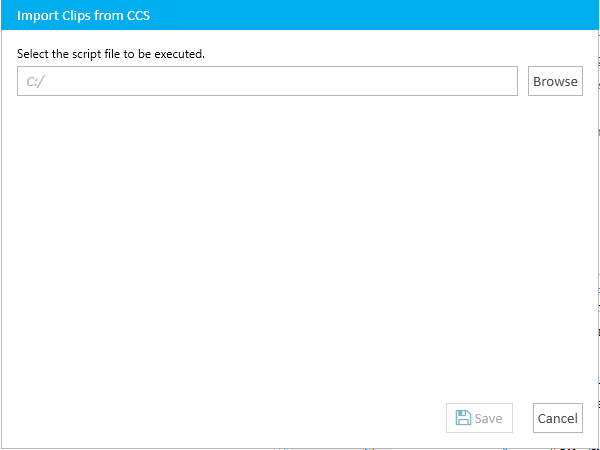
The local file explorer appears.
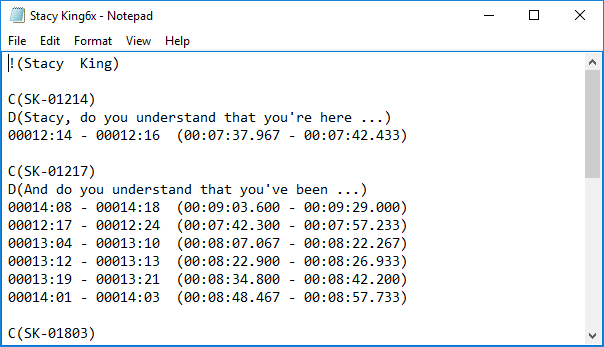
The clip is created using the references contained in the script file.
When a clip is created, it appears under its respective transcript in the Transcripts Explorer as well as in the Clips Explorer.