Edit a Workbook
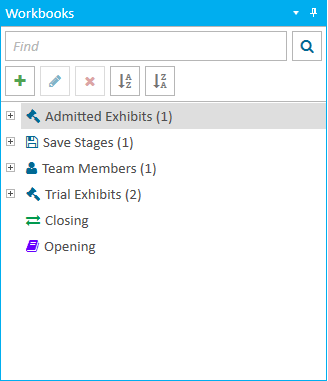
You can edit a workbook in a case using the Workbooks Explorer.
To edit a workbook from the Workbooks Explorer, open a case and follow the steps below:
-
Open the Workbooks Explorer.
-
Select a Workbook in the explorer.
-
Click the Edit button in the explorer.
-
Change any of the information for the workbook.
- Workbook Type - The selected type for the workbook.
Standard - A normal workbook to help organize items.
Carousel - A workbook that displays items in a unique way in TrialDirector 360 PRESENT.
-
Name - A unique name to help identify the workbook.
-
Color - The color assigned to help identify the workbook.
-
Click the Save button.
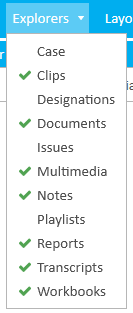
If the explorer is hidden, you can use the Explorers dropdown in the Main Menu to view it.


|
Note: The Edit button is also available from the right-click context menu. This option is only available for Standard and Carousel workbook types. |
The Edit Workbook dialog appears.
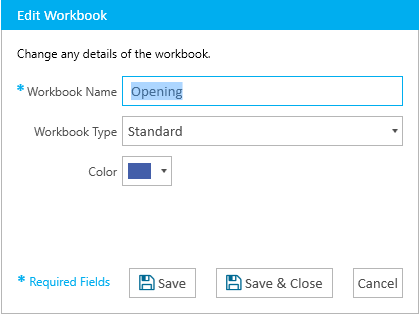
You may change any of the following information in the dialog:
With the information changed, you can move on to the next step.
The changes you made are saved for the workbook you selected.