Edit a Party
You can edit a party in a case using Designations Explorer.
To edit a designation type from the Designations Explorer, open a case and follow the steps below:
-
Open the Designations Explorer.
-
Click the Change View button in the explorer ribbon bar.
-
Select a party in the explorer.
-
Click the Edit button in the explorer.
-
Change any of the information for the party.
-
Name - The name to identify the party.
-
Color - The color assigned to help identify the party when it appears in a list.
-
Click the Save button.
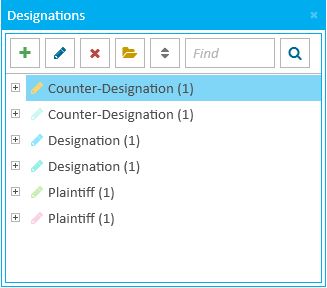
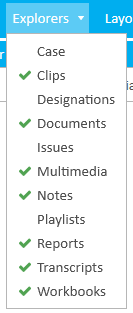
If the explorer is hidden, you can use the Explorers dropdown in the Main Menu to view it.

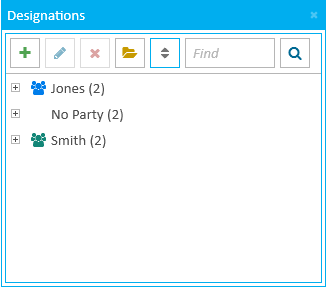
The view in the explorer changes to show parties as the top level instead of the designation types.

|
Note: Only parties assigned to a designation type with applied page and line references in a transcript appear in the explorer. |

The Edit Party dialog appears.
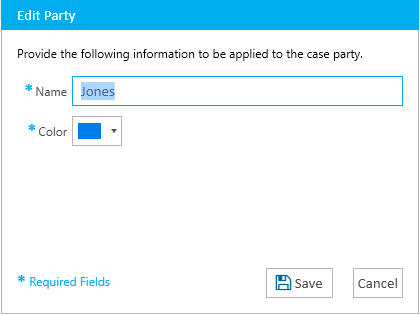
You may change any of the information in the dialog:
With the information changed, you can move on to the next step.
The changes you made are saved to the party you selected.