Create a Designation Comparisons Report
You can create a report that compares the designations from different parties using the Reports Explorer.
To create a Designation Comparisons Report, open the Reports Explorer in a case and follow the steps below:
-
Select the Designations Comparison item in the explorer.
-
Click the Run Report button in the explorer ribbon bar.
-
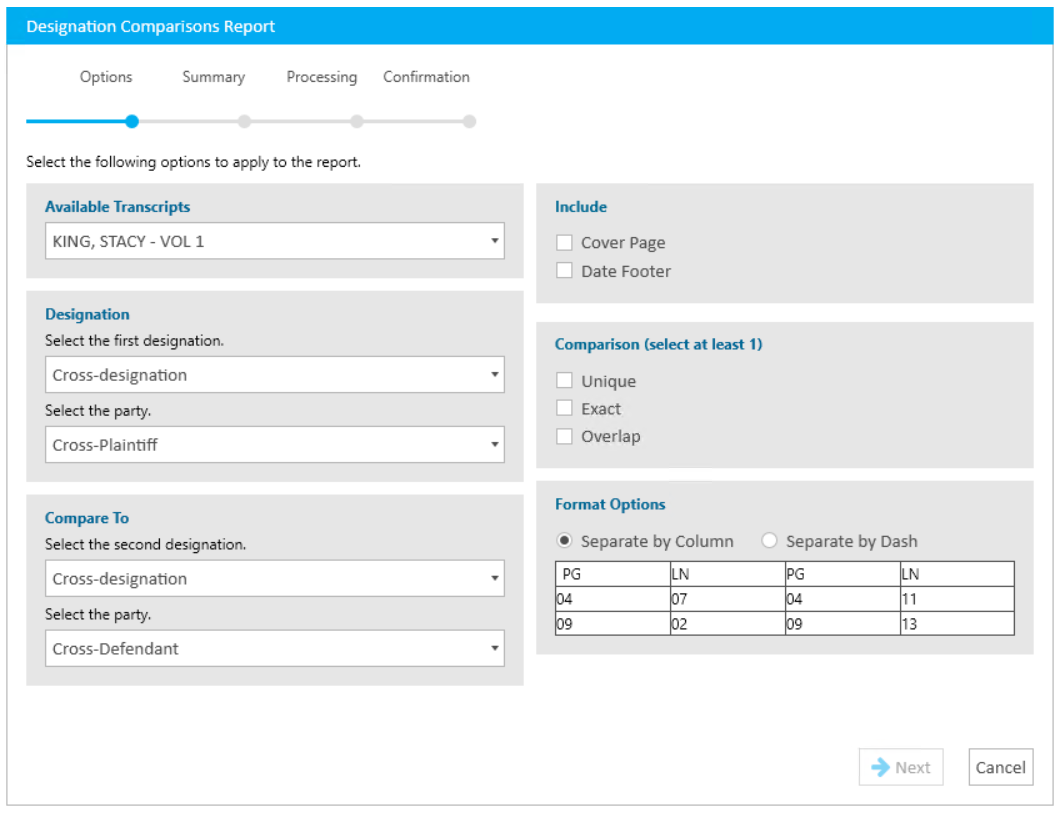
Ensure the selected options for the report are correct. You must select at least one of the compare options (Unique, Exact, and Overlap).
-
Click Next.
-
Click the Preview button.
-
Navigate between pages in the report
-
Save the report as a different file type


Note: Some reports may have a CSV save option.
-
Close the report

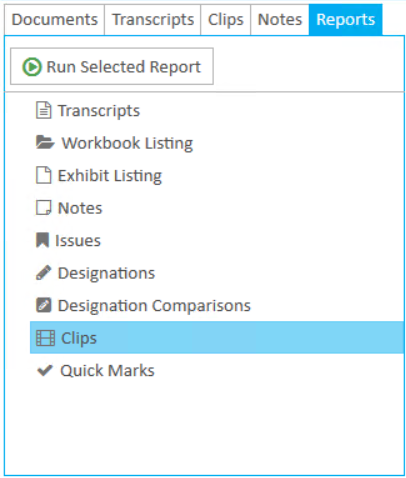

The Designation Comparisons Report wizard appears.
|
|
Note: See the table below for information on all of the report options. |
On the Summary page, you can review the options you selected for the report and click the Edit button or the Back button if you need to make any changes.
The report is generated and appears in the Report Work Area.
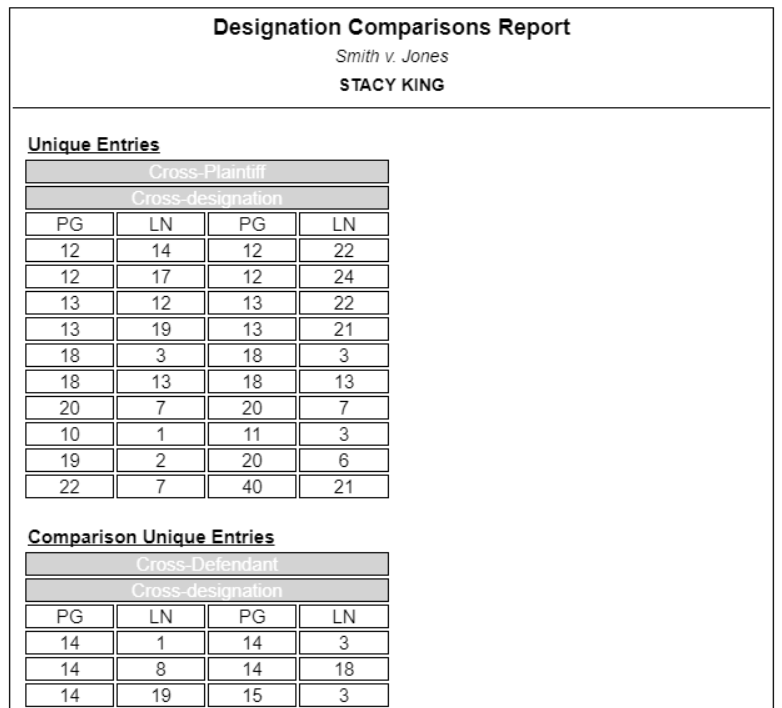
You can use the options in the Report Work Area ribbon bar to perform any of the following actions:
Report Options
The Designation Comparisons report contains the following customization options:
|
Option |
Definition |
|
Available Transcripts |
Select the transcript you want to compare designations for. |
|
Designation |
Select the first designation and party.. |
|
Compare To |
Select the second designation and party. |
|
Include |
You can choose to include the following options in the report:
|
|
Comparison |
|
|
Format Options |
|

