Add Notes to a Document
You can apply notes to documents using the Add Note dialog.
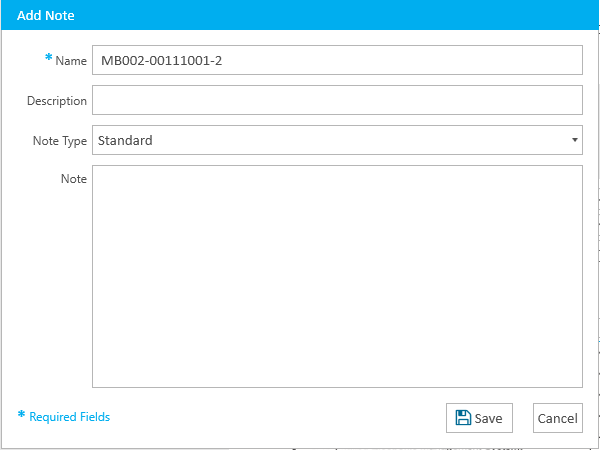
To add a note to a document, open a document in a case and follow the steps below:
-
Click the Notes button in the ribbon bar.
-
Fill in the information for the note.
-
Name - The name of the note.
-
Description - A short explanation of the note.
-
Note Type - A selection from the type of notes available. Choose the type you feel appropriate.
-
Note - The actual note you want to apply to the document.
-
Click the Save button.

The Add Note dialog appears.
Fields in the dialog include:
With the information filled, you can move on to the next step.


|
Note: You can view any notes applied to the document in the Details panel and the Notes Explorer. |