Invite a Team Member
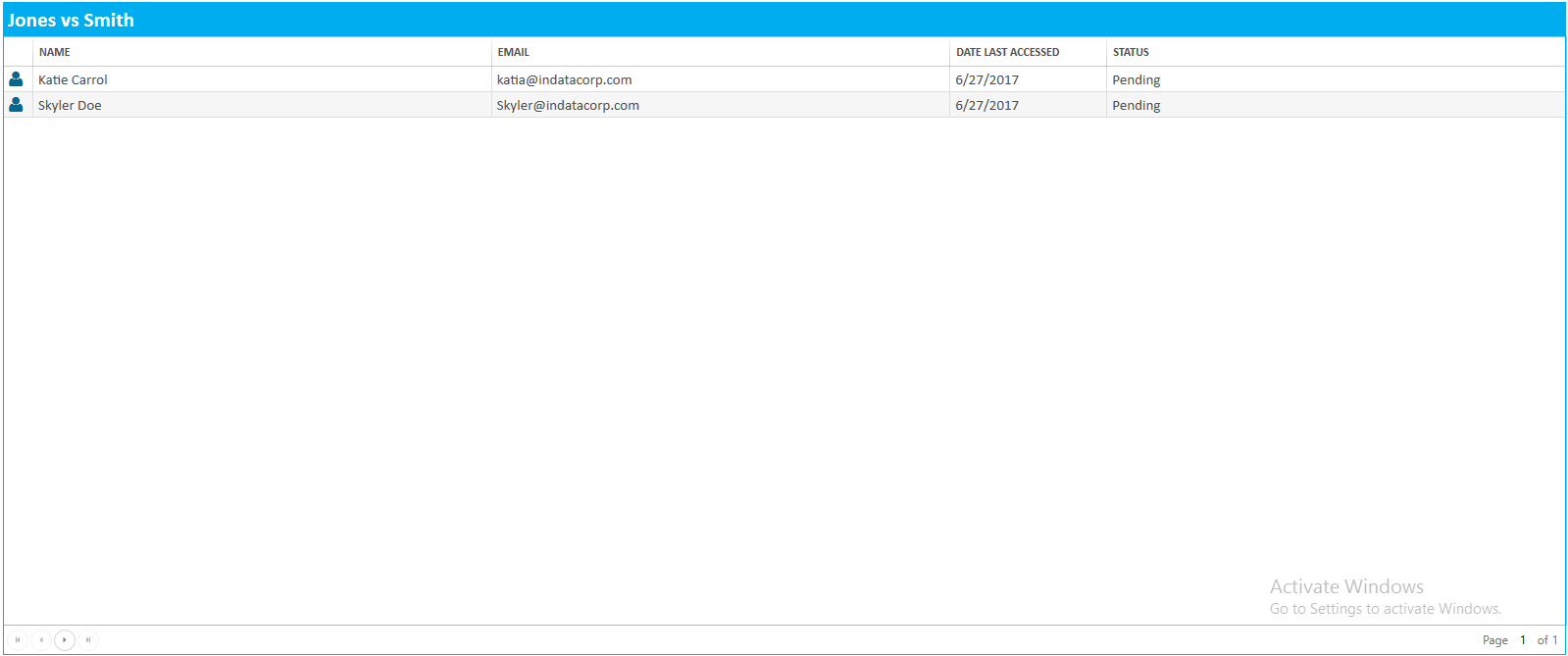
You can invite team members to join your case from the Team Members tab in an open case.
To invite a team member, open the case and follow the steps below:
-
Select the Team Members tab.
-
Click the Invite Team Member button.
-
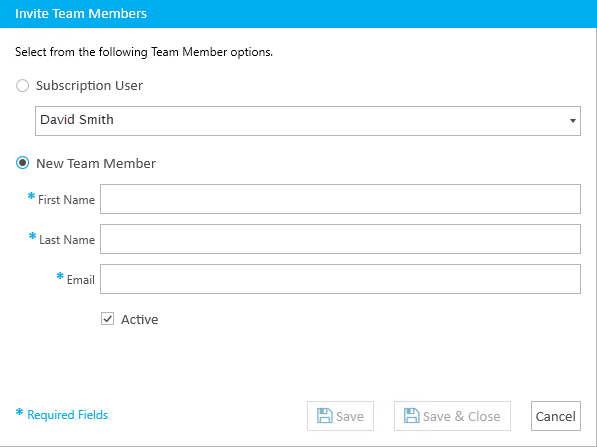
Enter the information for the team member in the dialog.
-
Subscription User - If the team member is already a TrialDirector 360 subscription user, select their user name from the Subscription User drop down.
- New Team Member - If you are inviting a new team member, who is not a subscription user, enter their contact information in the fields provided.
First Name - The first name of the invitee
Last Name - The last name of the invitee
Email - The contact email of the invitee
Active - If the team member is an active participant in the case, check the Active checkbox. If the team member is not active on the case, but maybe be at a later date, leave the Active box unchecked. Later, you can edit the team member's access and change their access to Active for the case.
-
Click Save & Close.

The Team Members table appears.
The Invite Team Member dialog appears.

The dialog closes, and an invitation email is sent to the invitee.