Export Case History
You can export a report of all your cases from the Case History page.
To export Case History, follow the steps below:
-
Click the Case History button on the CASE MANAGER Start Page.
-
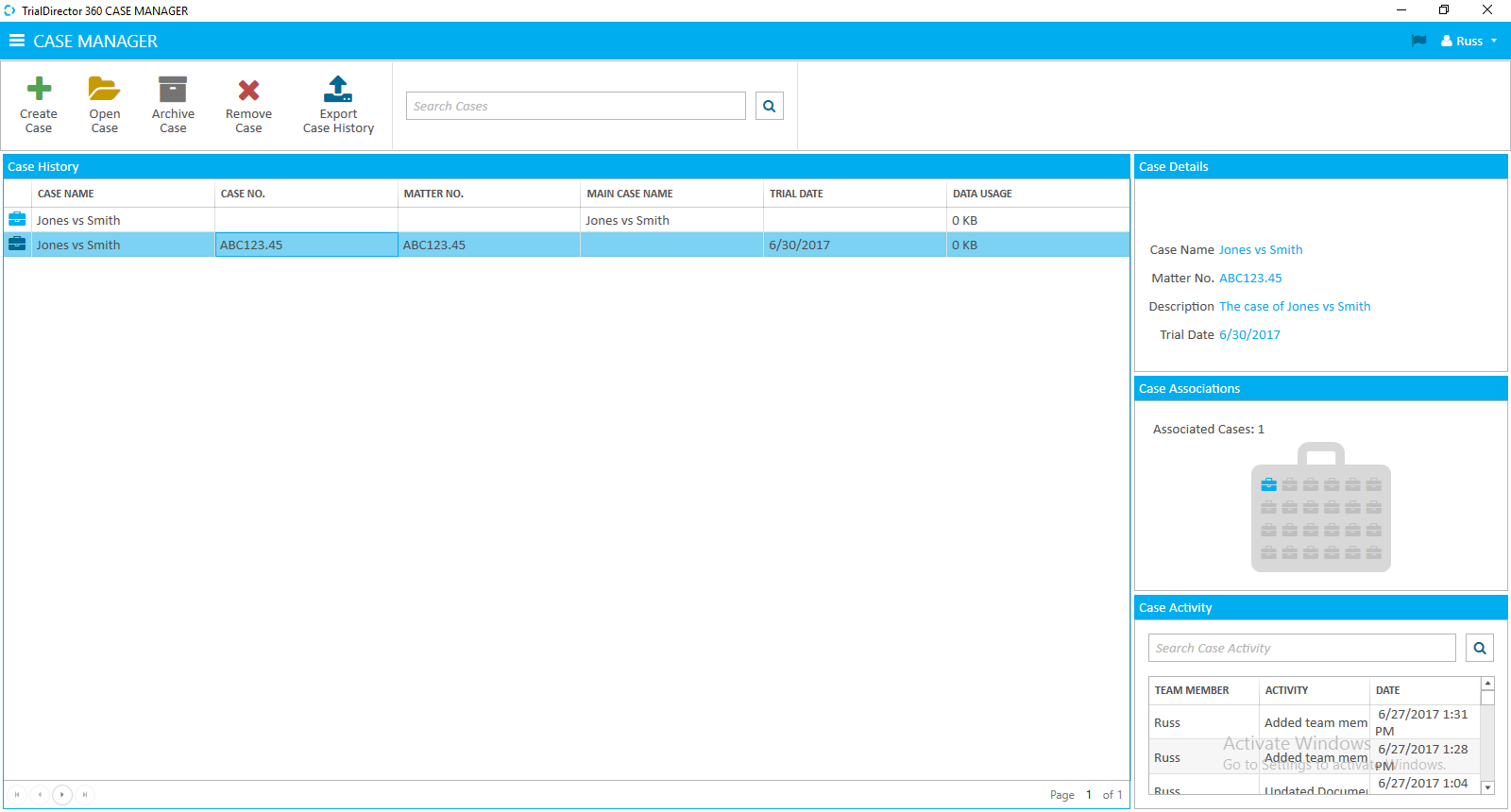
Click the Export Case History button on the Case History page.
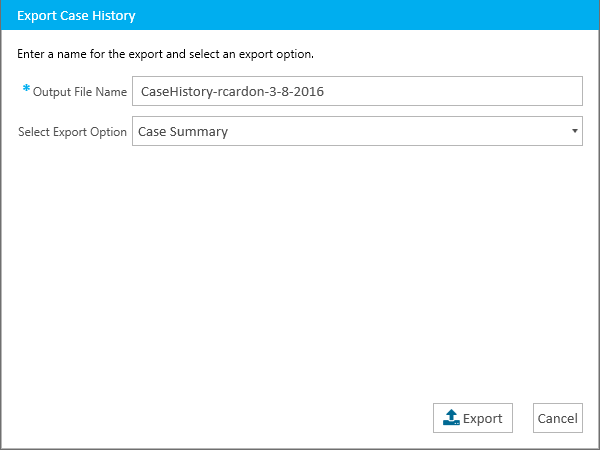
- Enter the information for the export.
-
Output File Name - The name of the export file
- Select Export Option - The type of report the export will generate -- options include:
Case Summary
Case Detail
-
Click the Export button.
The Case History page appears.
The Export Case History dialog appears.
Enter the following information:

The Case History report is generated.