Create an Associated Case
You can create an associated case from any other existing case in CASE MANAGER (other than another associated case). The case items, issues, team members, etc. can be copied to the new associated case.
For example, you may work on product liability and class action cases. In many of these types of cases, the same documents are produced and similar issues are claimed from case to case. Main cases provide a simple mechanism to easily and efficiently track and organize all of the similar items associated with different cases.

|
Note: Viewing and working with an associated case is somewhat different than working with a regular case. With an associated case, all of the items contained therein are pulled from the main case the associated case is connected to. However, it is possible to add items like issues separately into an associated case without having to pull the items from the connected main case. |
To create an associated case, follow the steps below:
-
Click the Create Associated Case button.
-
CASE MANAGER Start Page
-
Case Details tab within a main case

-
Progress through the steps of the wizard.
-
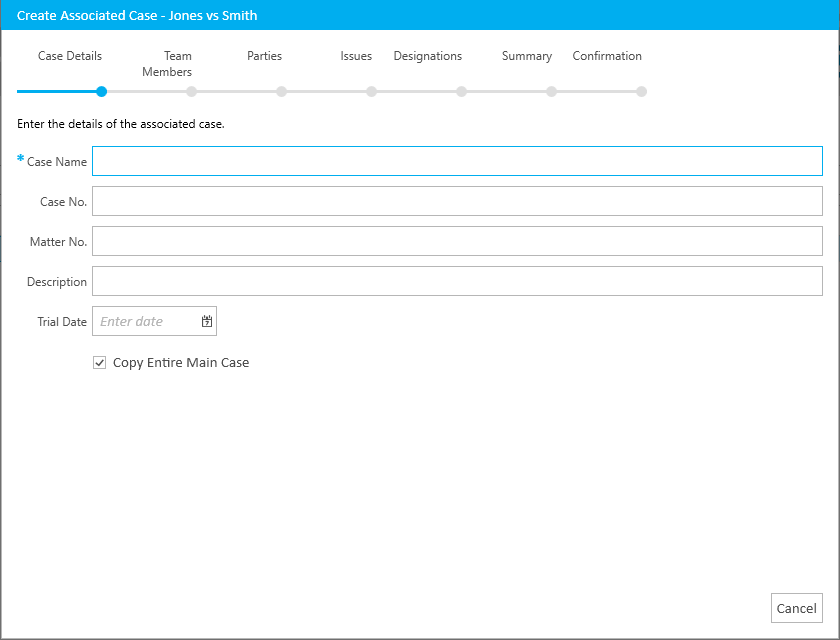
Case Details - The general information to identify the case

-
Issues - A list of issues from the main case that can be selected and added to the new associated case

-
Designations - A list of designations from the main case that can be selected and added to the new associated case

-
Parties - A list of parties from the main case that can be selected and added to the new associated case

-
Add Team Members - A list of team members from the main case that can be selected and added to the new associated case

-
Click the Create button on the Create Associated Case Summary step.
-
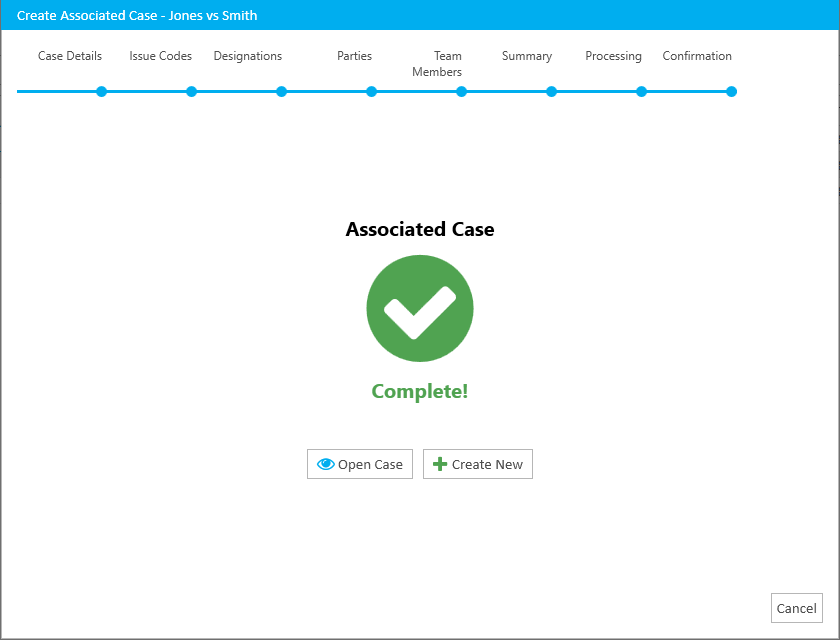
Click the Finish button to exit the wizard.
You can access the Create Associated Case button from the following areas:
The Create Associated Case wizard appears.
The wizard contains the following steps:
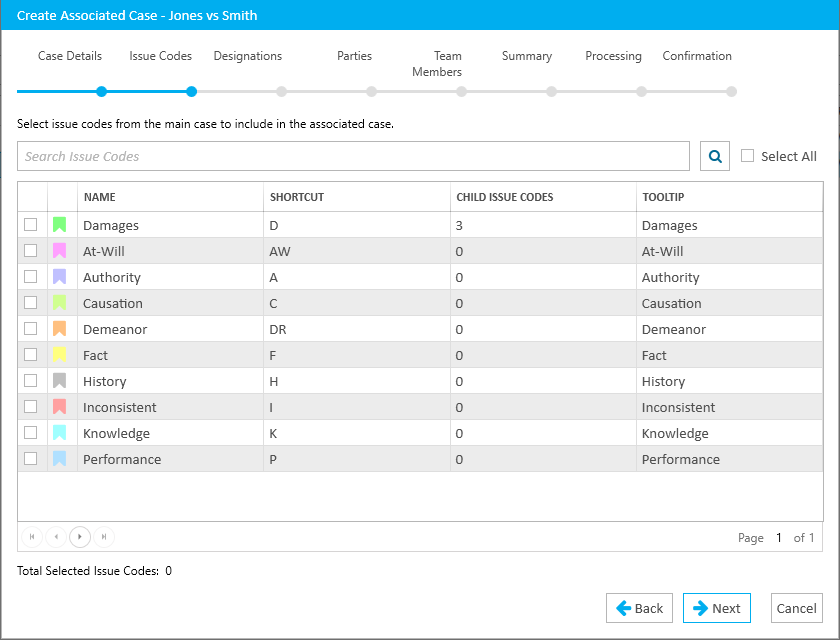
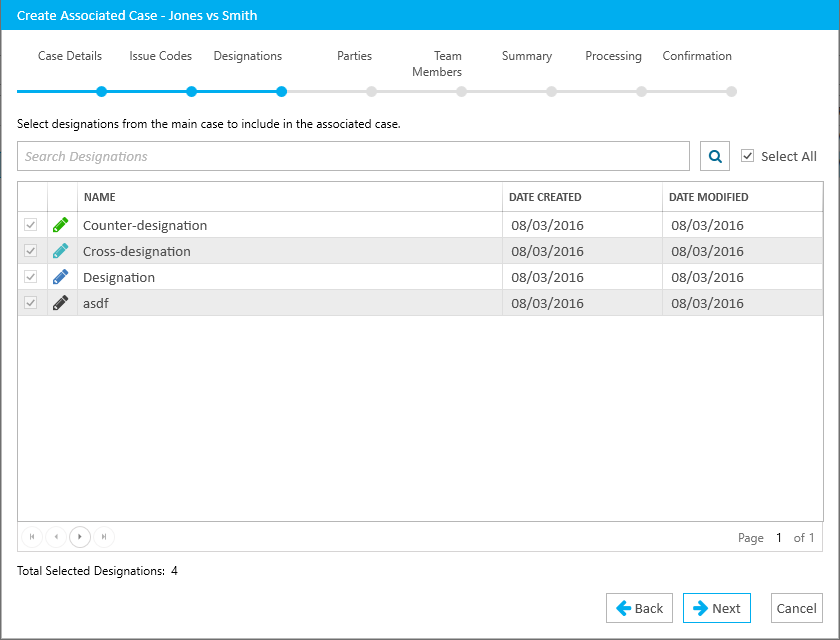
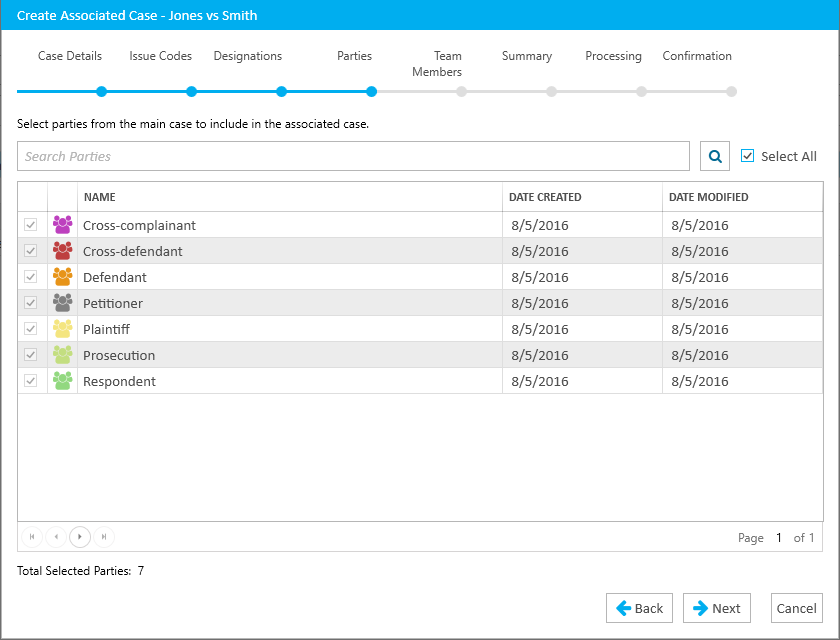
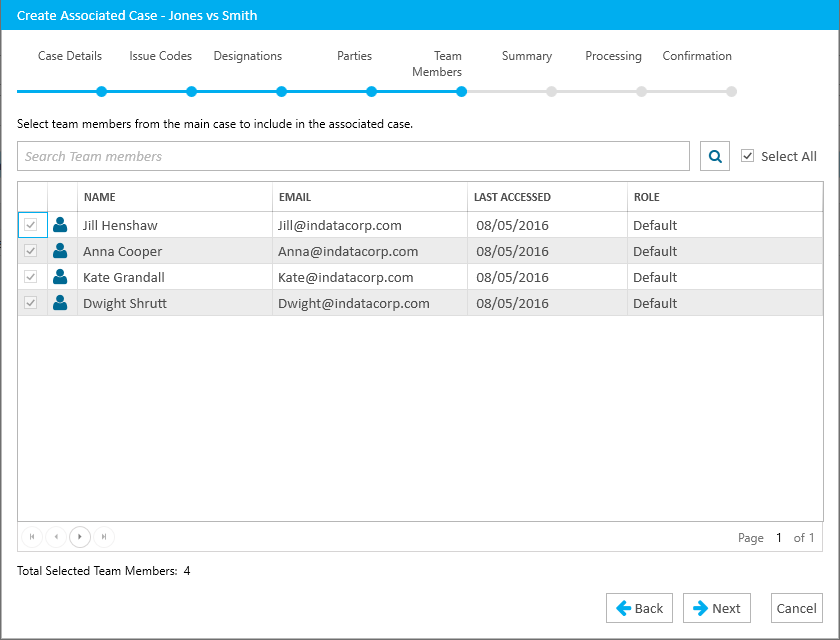
When adding issues, designations, parties, and team members, use the checkboxes to select what you want from the main case to appear in the associated case.
|
|
Note: You can use the Copy Entire Main Case option on the Case Details step to copy all the items from the main case to the associated case, or you can use the Select All option on each individual step to copy all the items on an individual step. |
After you select all the items from the main case you want, you arrive at the Summary step.
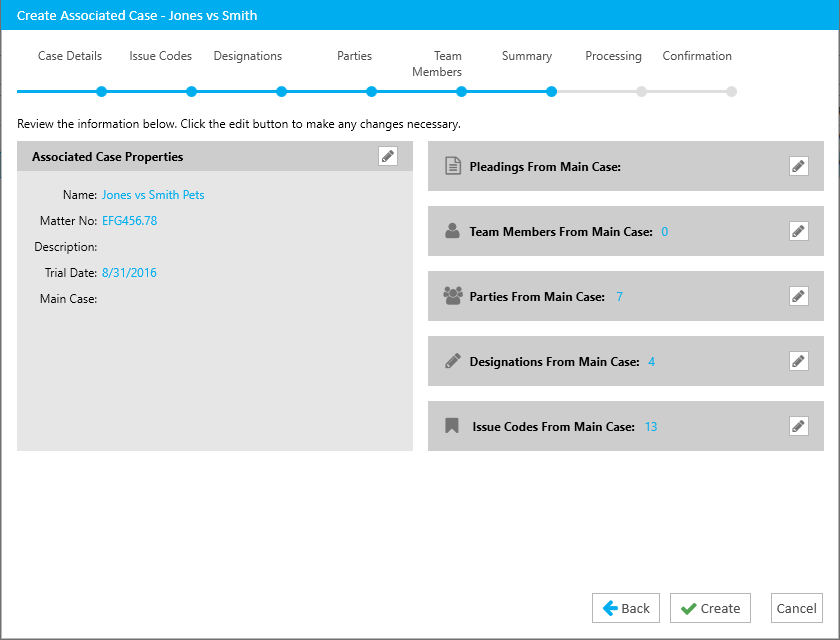
Review the information from the Create Associated Case Summary.
|
|
Note: If you wish to go back and change any of the previous steps, you can click the back button or click the links in the summary itself. |
Click the Create button and the associated case is created.